Getting Started
Welcome to Playlite! This guide will help you set up your library and start organizing your games in just a few minutes.
1. Overview
When you open Playlite, you'll see the games you are currently playing, trending games, and recommended games based on your preferences and most-played titles.
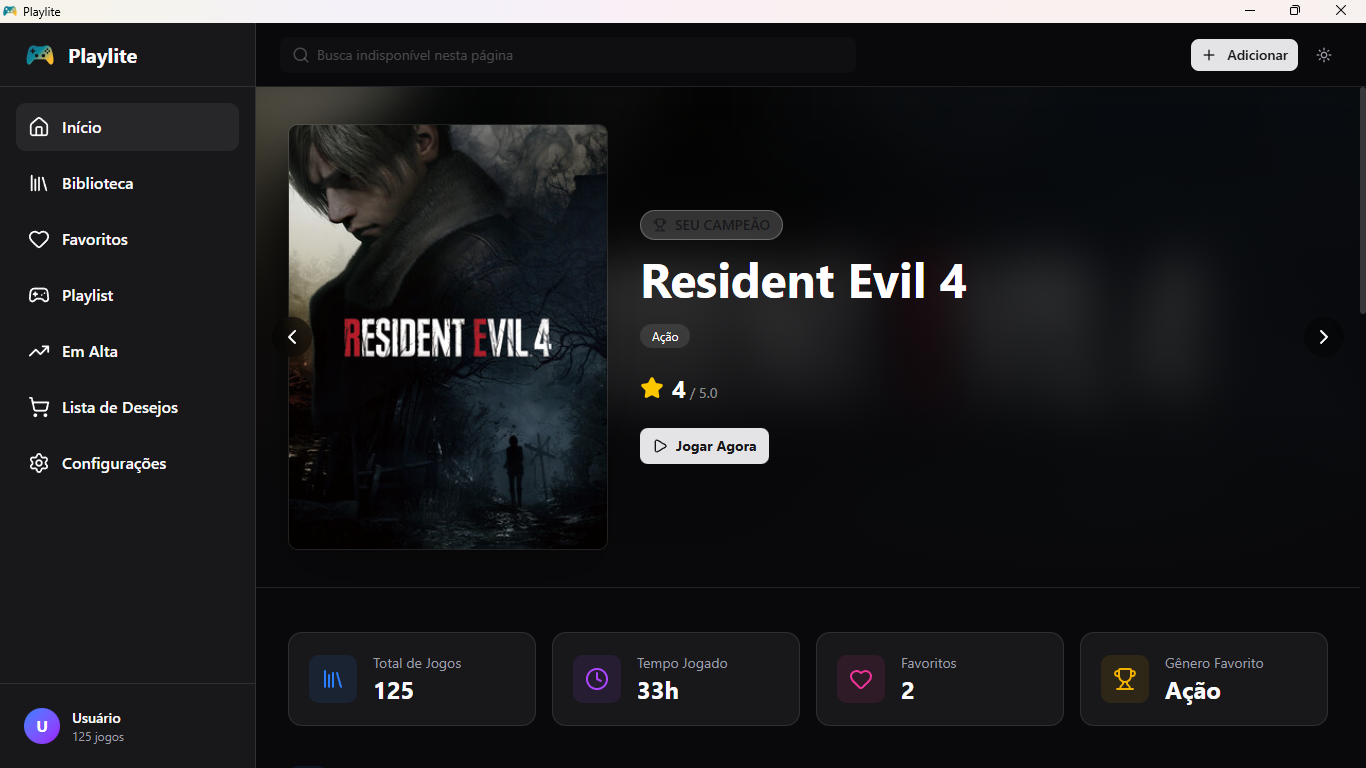
The sidebar is your navigation hub:
- Library: All of your games.
- Wishlist: Games you want to buy.
- Playlist: Your "up next" queue.
- Settings: Import and backup settings.
2. Importing Your Library (Steam)
The easiest way to get started is by importing your games from Steam.
- Go to the Settings tab.
- Find the Steam import section.
- Fill in the required fields:
- Steam ID (64-bit): The numeric identifier for your profile.
- API Key: Your personal access key.
- Save the Steam ID and API Key by clicking Save all Settings.
- Click Start Import.
Where do I get this data?
You can get your API Key for free on Steam's official site: Steam Web API. To find your SteamID64, you can use tools like SteamIO.
Playlite will download your games, covers, and playtime. This may take a few moments depending on the size of your library. After that, you can optionally click to fetch metadata and update game information.
3. Adding Games Manually
For Epic, GOG, emulators, or physical games:
- In the header, click the + Add button.
- Type the game name.
- Optional: add the platform (Epic, GOG, Emulator, Physical, etc.), playtime and status, custom cover image, and genre (action, adventure, RPG, etc.).
- Confirm and save.
4. Organizing Your Progress
Now that your games are imported, click any game to view its details.
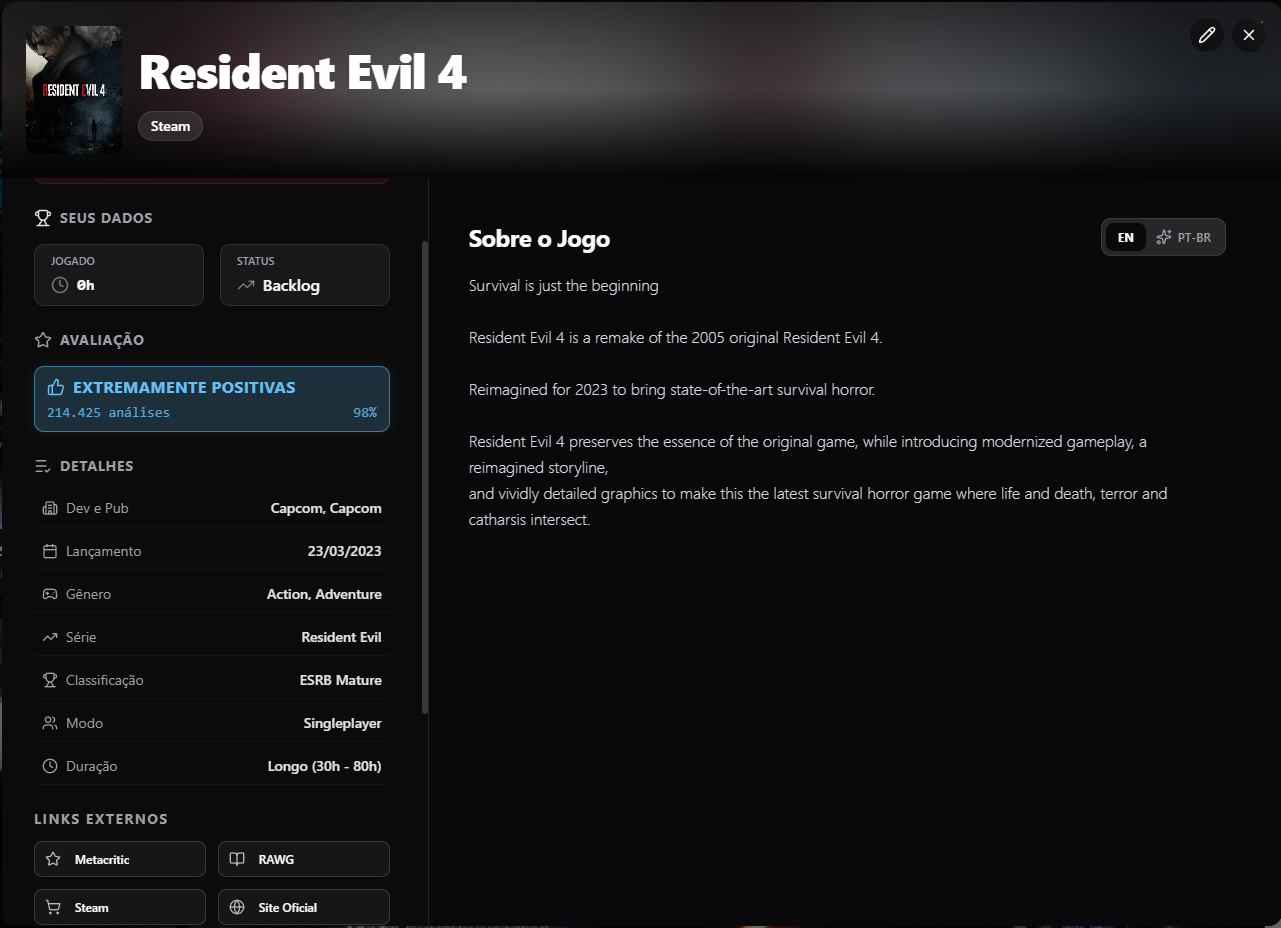
On this screen, you can review all collected information (genre, synopsis, developer, critic score, etc.) and also visit the official website or store page using the link shown.