Settings
On the Settings screen, you control the app behavior and its integrations.
Steam Integration
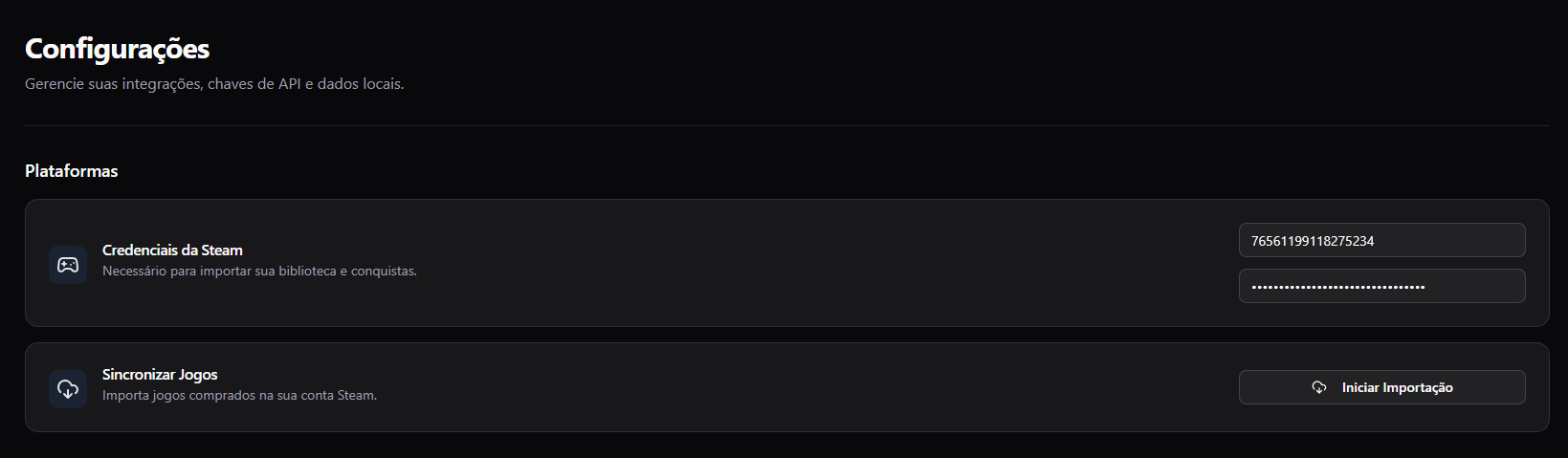
Connect your account to keep your library synchronized.
- Enter your SteamID64 and API Key.
- Click Save.
- Use the Import button to download your games.
Note: Credentials are stored only on your computer. To learn how to obtain these keys, see the Getting Started guide.
Recommendation Algorithm
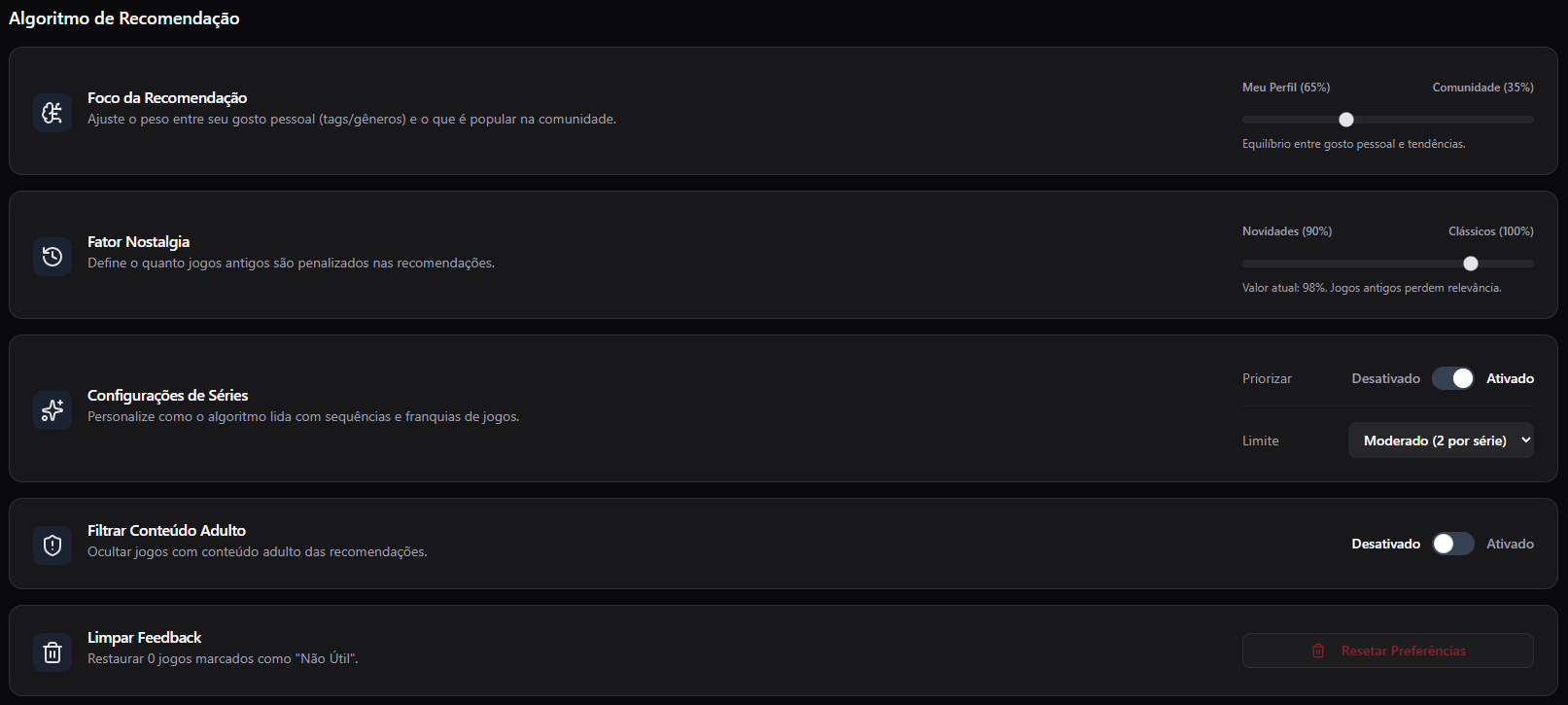
Playlite suggests games based on your history and preferences. You can adjust:
- Recommendation Focus: Prioritize games similar to the ones you like most or explore a wider variety of popular titles.
- Novelty Factor: Increase or decrease the presence of new games in the suggestions.
- Series and Franchises: Choose whether to see more games from series you already own.
You can also remove recommendations for games with adult content.
Metadata and AI Translation
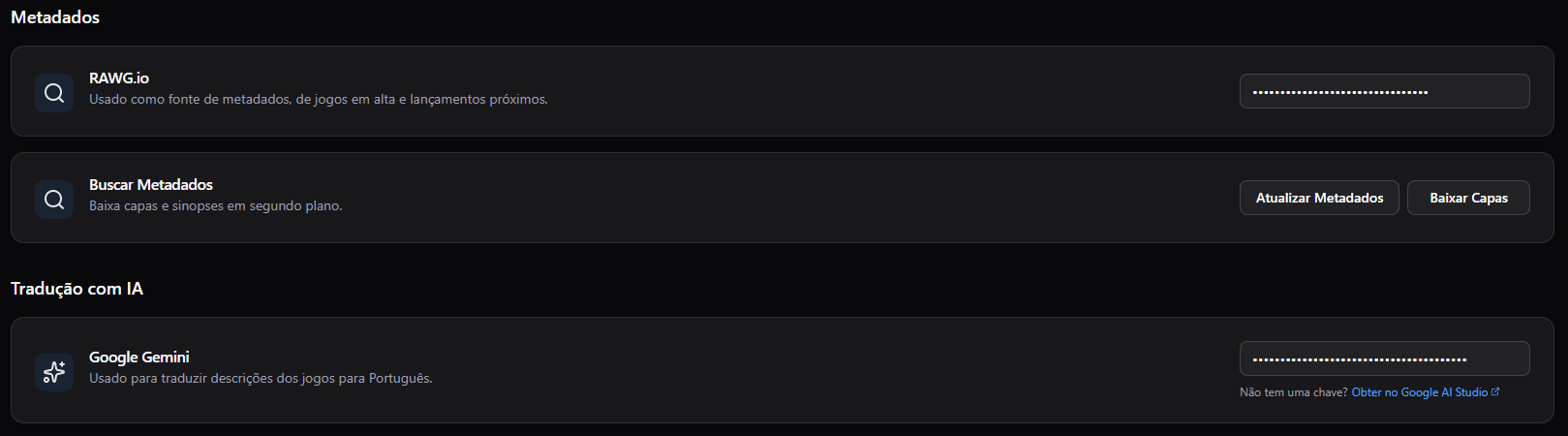
Playlite can fetch additional information for your games, such as covers, genres, and descriptions. It uses the RAWG API as the primary source and Steam as the secondary option.
It also offers the option to translate game descriptions using the Gemini LLM. In this section, you can enter your Gemini API key to enable this feature. There is also a link to the guide on how to obtain the key.
Data and Security
Backup and Restore

Playlite lets you export all your data to a JSON file. This is useful when formatting your PC or migrating to a new machine.
- Export: Generates a file with all your games, ratings, and statuses.
- Import: Restores your library from a saved file.
Local Storage

Your data is stored locally on your computer, ensuring privacy and full control over your information. In this settings section, you can manage saved data, remove cache data, and delete game cover images stored locally.